{label}Menu
{contenu}
Create module fundation
{contenu}
It's time to discover the first lines of code
and commands to know to add features to helPHP.
and commands to know to add features to helPHP.
{contenu}
2 - Will your module be functionally close to another already existing or not at all? In which case it may be better to copy a module and modify it or start from scratch.
So we'll examinate these cases:
Before typing the first command line, here are the questions to ask (if you already have a functional helPHP instance, and access to your server terminal or container):
1 - Will your module be used in a single project (so only one instance), in many, or are you thinking about broadcasting it for other helPHP users?
This implies that you will position its folders and files in the instance (if it is for a single project) or in the main of helPHP.
1 - Will your module be used in a single project (so only one instance), in many, or are you thinking about broadcasting it for other helPHP users?
This implies that you will position its folders and files in the instance (if it is for a single project) or in the main of helPHP.
2 - Will your module be functionally close to another already existing or not at all? In which case it may be better to copy a module and modify it or start from scratch.
So we'll examinate these cases:
Let's start with the simplest case, Let's create a module from scratch and intended for use in several projects or to broadcast:
Connect in ssh to your server or container docker (or send the command to the container via "docker exec -ti ..."), in the folder utils You will find a very useful script: create_module.php .
It is very simple to use, just give it as a parameter the name of the desired module, and here is the only difficulty:
The name of the module must be unique!
Because, whether it is for routing, display management, Rest API etc, this name will be used everywhere, so choose a new unique module name.
For the example and for the continuation of our documentation, we will create an image and video gallery management module, we'll call it "mediagallery".
So just type the command: php /path_to_helPHP/utils/create_module.php mediagallery
The name of the module must be unique!
Because, whether it is for routing, display management, Rest API etc, this name will be used everywhere, so choose a new unique module name.
For the example and for the continuation of our documentation, we will create an image and video gallery management module, we'll call it "mediagallery".
So just type the command: php /path_to_helPHP/utils/create_module.php mediagallery
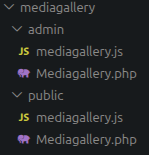
And we'll get a "mediagallery" folder and some new files in the "module" folder.
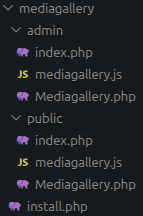
If you have already looked at the content of the other modules, you will notice that there is missing the files "index.php" in "admin" and "public".
You can decide to create an immediate first version with another utility that is in the "utils" folder: create_module_installer.php .
You can decide to create an immediate first version with another utility that is in the "utils" folder: create_module_installer.php .
which will create you the indexes in question as well as the file install.php.
So we will use it at the beginning of the module development to pre-install it, and at the end of the development to incorporate the database and add any new files.
So tap in the terminal next command
php /chemin_vers_helPHP/utils/create_module_installer.php mediagallery no_db
'no_db' indicates that no object representing a database to be submitted (for the time being).
Here we are with a few more files.
Here we are with a few more files.
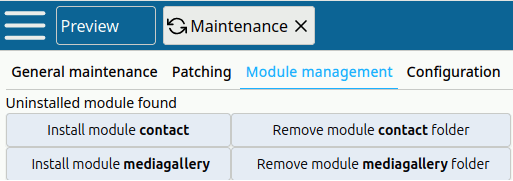
To install the new module, just go to "settings/maintenance" and then tab "module management",
Our new module is available and we can install it.
Concretly, this will add the module to the list that is in the config/main.php of your instance, move the index.php to folders in the name of the module in admin and public and finally add an element to the back-office menu, except that this element will not have a correct label: "{module_name}", which is normal at this point (no dictionary for labels).
Concretly, this will add the module to the list that is in the config/main.php of your instance, move the index.php to folders in the name of the module in admin and public and finally add an element to the back-office menu, except that this element will not have a correct label: "{module_name}", which is normal at this point (no dictionary for labels).
Similarly, if you click on this link, you will get a MySQL error because we also do not create a database for our module.
So let's create a default table with a few SQL queries (be careful to change the table name prefix if needed) :
Once the table is added, the module is displayed, but it only displays a "save" button at the moment, which is normal.
And how do you fix the fact that he's wrongly named in the menu?
CREATE TABLE `hlp_mediagallery_data` ( `id` int(11) UNSIGNED NOT NULL, `name` varchar(255) NOT NULL DEFAULT '') ENGINE=MyISAM DEFAULT CHARSET=utf8mb4 COLLATE=utf8mb4_unicode_ci;ALTER TABLE `hlp_mediagallery_data` ADD PRIMARY KEY (`id`);ALTER TABLE `hlp_mediagallery_data` MODIFY `id` int(11) UNSIGNED NOT NULL AUTO_INCREMENT;Important detail: The first table of a module being a representation of the main data_object will necessarily have a name suffixed with "_data".
This table necessarily contains a numerical "id" field and an alphabetical "name" (vital for certain operations and especially in the case where the database is damaged and you can no longer rely on autoincrements). The name field is also used by default in many functions.
This table necessarily contains a numerical "id" field and an alphabetical "name" (vital for certain operations and especially in the case where the database is damaged and you can no longer rely on autoincrements). The name field is also used by default in many functions.
Once the table is added, the module is displayed, but it only displays a "save" button at the moment, which is normal.
And how to set the label display in the menu?
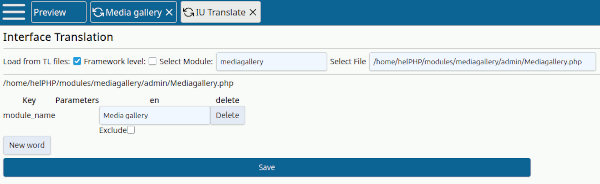
In the menu "Arrangement and design" the module "IU Translate" will allow us to indicate the right label:
Select the mediagallery module, then the /helPHP_path/modules/mediagallery/admin/Mediagallery.php file and you will be asked to enter the module name.
Enter "Media gallery" and save, and do the same for the public file of the module.
Refresh the page and now the module appears properly labeled in the menu and in the tab bar when you open it.
A file "tl_mediagallery-en.php" appeared in the "admin" and "public" folder of the module, you will understand, this is the beginning of the dictionary for the English language.
Select the mediagallery module, then the /helPHP_path/modules/mediagallery/admin/Mediagallery.php file and you will be asked to enter the module name.
Enter "Media gallery" and save, and do the same for the public file of the module.
Refresh the page and now the module appears properly labeled in the menu and in the tab bar when you open it.
A file "tl_mediagallery-en.php" appeared in the "admin" and "public" folder of the module, you will understand, this is the beginning of the dictionary for the English language.
{contenu}
You may have already understood it: so you can also extend a module (at the place where you added the included) before you call it, and the tl_ and javascript files that are in an instance are included primarily to those in the main!
So no need to modify the main for particular cases, all exceptions are coded in the instances!
Let's go back to our starting questions: Should this module be available for all projects or should it be in a single project instance?
We're okay in the first case, for the second it's very simple: Move the contents of the module/mediagallery/admin folder to the instance admin/mediagallery folder, do the same for the public folder, then change the index.php and add a simple include before calling the module like this:
We're okay in the first case, for the second it's very simple: Move the contents of the module/mediagallery/admin folder to the instance admin/mediagallery folder, do the same for the public folder, then change the index.php and add a simple include before calling the module like this:
include_once(dirname(dirname(__DIR__)).'/config/main.php');
include_once(Config::HELPHP_FOLDER.'autoload.php');
include ('Mediagallery.php');
$module = new helPHP\modules\mediagallery\admin\Mediagallery();
$module->process_data($_POST);
$module->publish_output();
You may have already understood it: so you can also extend a module (at the place where you added the included) before you call it, and the tl_ and javascript files that are in an instance are included primarily to those in the main!
So no need to modify the main for particular cases, all exceptions are coded in the instances!
And in case you want to start with a copy of a module ?????
Well, it's pretty simple, copying the folder of a module and searching and replacing the name of the module with the one you want, paying attention to:
Do it for the first time with the first letter of the module name in uppercase,
and a second time in lowercase (so a sensitive case search) on file names and their contents.
Well, it's pretty simple, copying the folder of a module and searching and replacing the name of the module with the one you want, paying attention to:
Do it for the first time with the first letter of the module name in uppercase,
and a second time in lowercase (so a sensitive case search) on file names and their contents.
Which leads us to have to discuss name conventions used in the helPHP code before you start coding!
TitleExecutive summary
Quickly create a new module
Date of establishment2026-04-14 00:00:00Date of publication2026-04-16 00:00:00

